
How to Make a Photo Slideshow Video for Free (No Watermark, No Install)
Want to turn holiday photos, a birthday, a wedding or a product catalog into a video you can share on YouTube, Facebook or TikTok? This guide shows you how to do it for free with Simple Video Maker – no watermark, no account, and your photos never leave your computer.
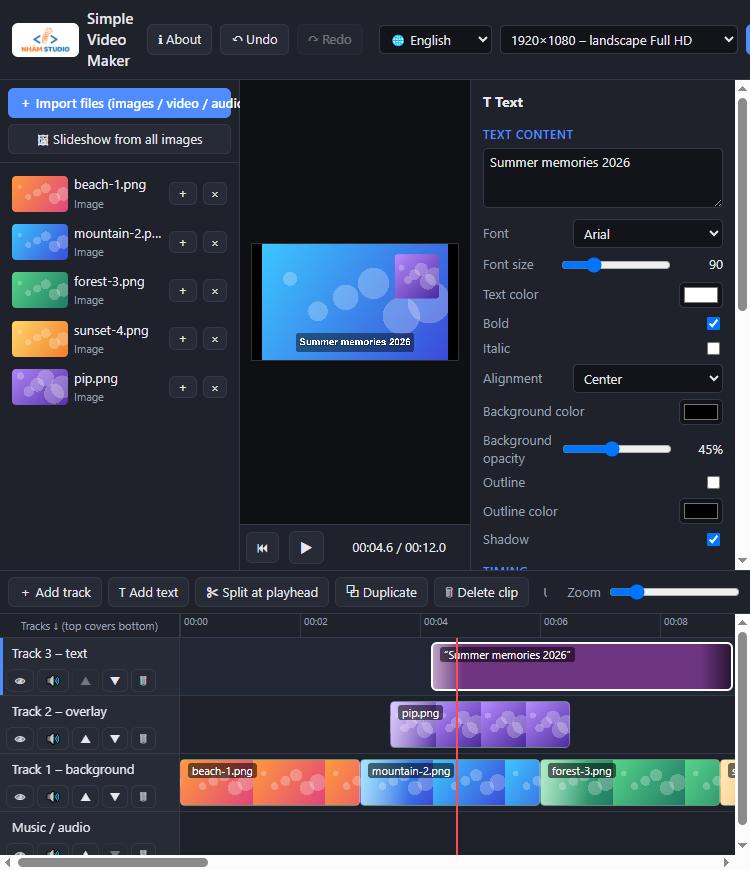
What you need
- A computer with Google Chrome or Microsoft Edge
- Your photos (JPG, PNG, WebP…) and, optionally, a music file (MP3, M4A, WAV…)
- Simple Video Maker – free, under 100 KB, nothing to install
Step-by-step: make your slideshow
Download and open the app
Download the ZIP, unzip it and double-click
index.html. It opens in Chrome or Edge. Prefer not to download? Use the online version – it works the same way.Pick the video format
In the top bar choose the frame size: 1920×1080 landscape for YouTube and TV, 1080×1920 portrait for TikTok, Reels and Shorts, or 1080×1080 square for the Facebook / Instagram feed.
Import your photos
Click + Import files and select all your photos at once (or drag them onto the window). Tip: name your files
01.jpg,02.jpg… so they stay in the right order.Set the photo length and transition
Click an empty spot on the timeline to open General settings. Set Default duration per image (3–4 seconds feels natural) and choose a Default transition – Fade is a safe choice, Slide or Zoom in feel more energetic.
Create the slideshow in one click
Click 🖼 Slideshow from all images. Every photo is placed back-to-back on the track and the transition is added between each pair automatically. Press Space to preview.
Add gentle motion (Ken Burns effect)
Click any photo, set Motion to Slow zoom in, then click Apply effects to whole track. Still photos now drift slowly, which makes the video feel much more alive. Want photos to fill the whole frame without black bars? Click ⛶ Fill frame.
Add background music
Import your music file and drag it onto the Music / audio track. Drag the clip's right edge so it ends with the last photo, then set Fade out volume to 2–3 seconds for a smooth ending.
Add a title
Click T Add text, type your title (for example “Summer 2026”), and adjust the font size, color, outline and shadow. Drag it in the preview to position it. Text fades in and out by default.
Export your MP4
Click ⬇ Export video. The MP4 is saved straight to your Downloads folder. Export runs in real time, so a 2-minute slideshow takes about 2 minutes – keep the tab visible until it finishes.
Tips for a better slideshow
- 3–4 seconds per photo is comfortable to watch. 20–30 photos make a 1–2 minute video.
- Tell a story: start with a wide “establishing” photo, end with your best shot.
- Match the beat: change the photo duration so cuts land on the music's rhythm.
- Keep text short – 3 to 6 words reads well on a phone.
- Use music you have the right to use, for example the free YouTube Audio Library, to avoid copyright blocks.
- Portrait photos in a landscape video? Put a blurred or colored background on a lower track, or use Fill frame.
Frequently asked questions
Is it really free and without a watermark?
Yes. Simple Video Maker is free, adds no watermark, needs no account and has no time limit.
Are my photos uploaded to the internet?
No. Everything is processed on your own computer. Only anonymous usage counts (app opened, video exported) are sent, and you can turn that off in General settings.
Can I make vertical videos for TikTok or Reels?
Yes. Pick 1080×1920 in the frame size menu before you start.
How many photos can I use?
There is no fixed limit. Very large projects depend on your computer's memory.
Does it work on a phone?
It is designed for computers with Chrome or Edge. For the best experience use a laptop or desktop.
Make your slideshow now
It takes about 10 minutes from photos to finished MP4.